
iPad for Senior Cycle Assessments

Save Hours of Time with Senior Cycle Templates
1000s of students across Ireland will have to create and format assessments for their Senior Cycle subjects. Formatting every assessment every time alone could cost students hours of time. But what if there was an easy way to do this?
Using Pages on iPad, students can create a template in just 5 simple steps that they can save and use every time for each of their Senior Cycle Additional Assessment Components.
Check out our simple steps to do this below.
Formatting Senior Cycle Assessments on iPad
Learn how to create and save templates for all Senior Cycle AACs in 5 easy steps on iPad
Step 1.
Open the Pages app on your iPad and then open a new blank Pages document.
Step 2.
Tap on  , tap Document Options then tap Document Setup.
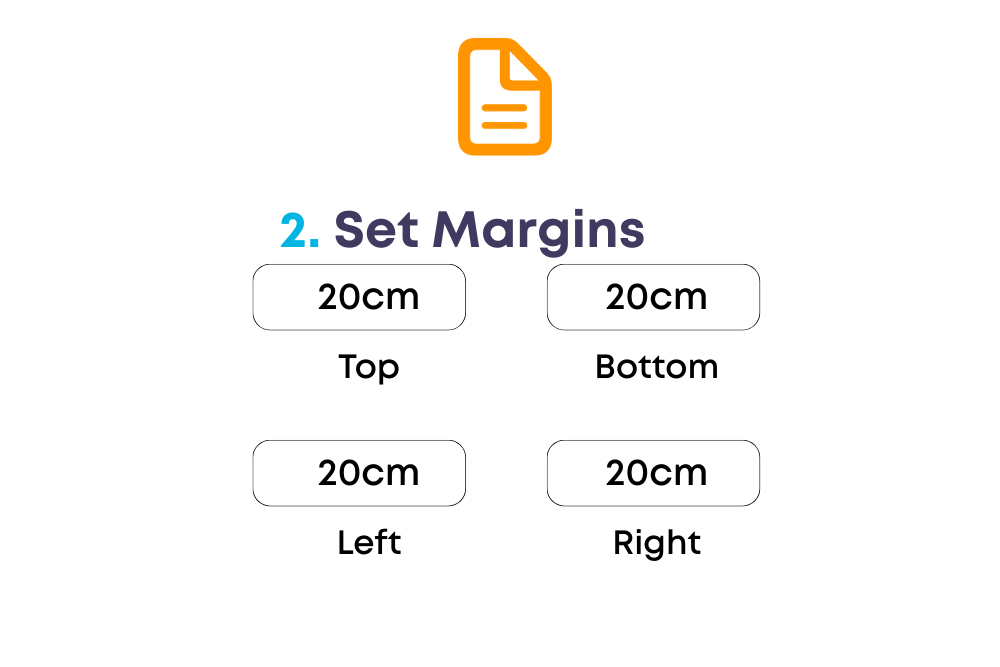
Select Portrait and A4 as your Document type, then click More Options at the bottom of this page.
Drag the double arrows on the top, bottom and sides of the page to 20cm as per Oide guidelines.
Step 3.
Tap on , tap Document Options then tap Document Setup.
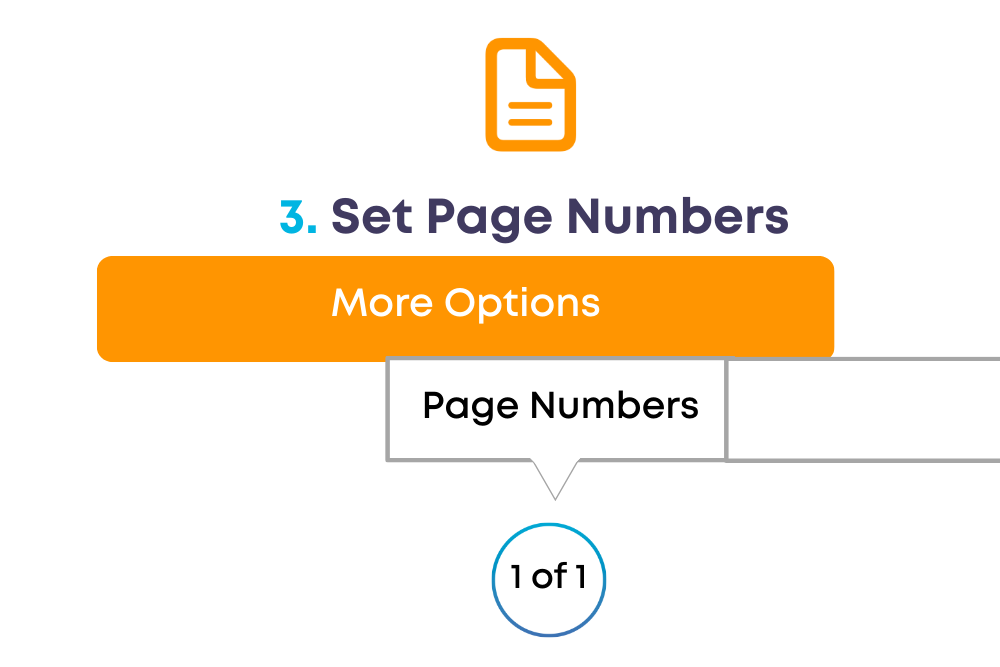
Make sure Headers and Footers is turned on and then click More Options. Use 2 fingers to zoom and tap the footer field where you want the number to appear.
Tap Page Numbers and then select Arial, Black, Font size 14 as your font style as per Oide guidelines.
When finished tap Done in the top left corner.
Step 4.
*Go to Settings > General > Keyboards and ensure Keyboard shortcut is turned on for your iPad.
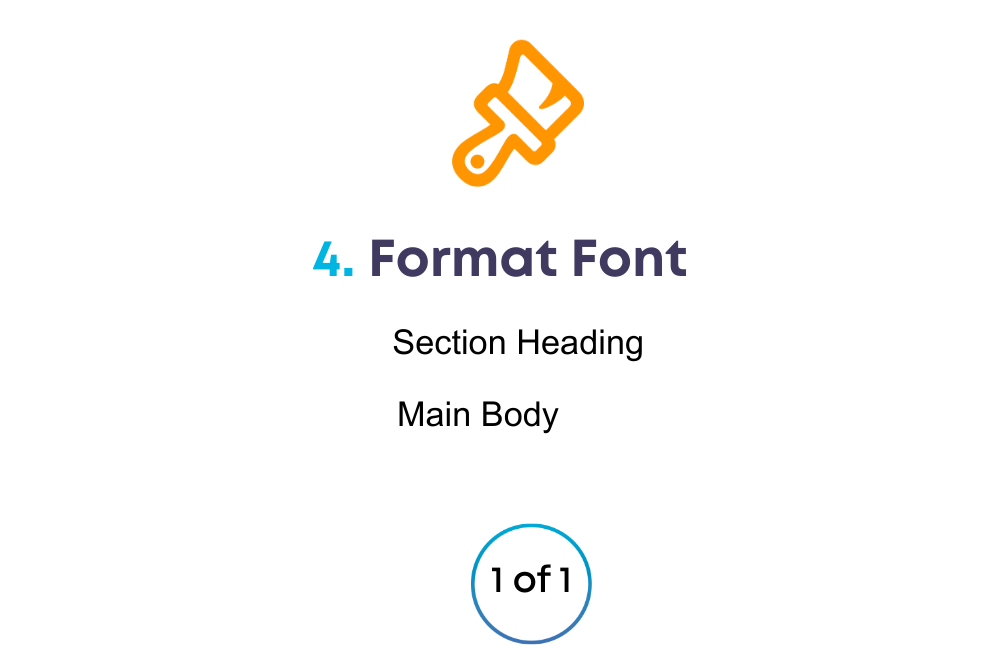
Click on the top of your Pages doc and the keyboard will appear at the bottom. Tap the Abc icon on the top left of the keyboard and select Arial then tap the Aa icon on the top right of the keyboard and select Bold and Font size 14.
Click onto the Pages doc and Type ‘Section Header’ at the top. This should be set to Arial, Black, Bold and Font size 14 as per Oide guidelines.
Next click on the Aa icon again above the keyboard and remove the bold from the font and change the size to 12. Now click back under the section heading and type ‘Main body text’ which should appear as Arial, Black, size 12 as per oide guidelines. Then click Done.
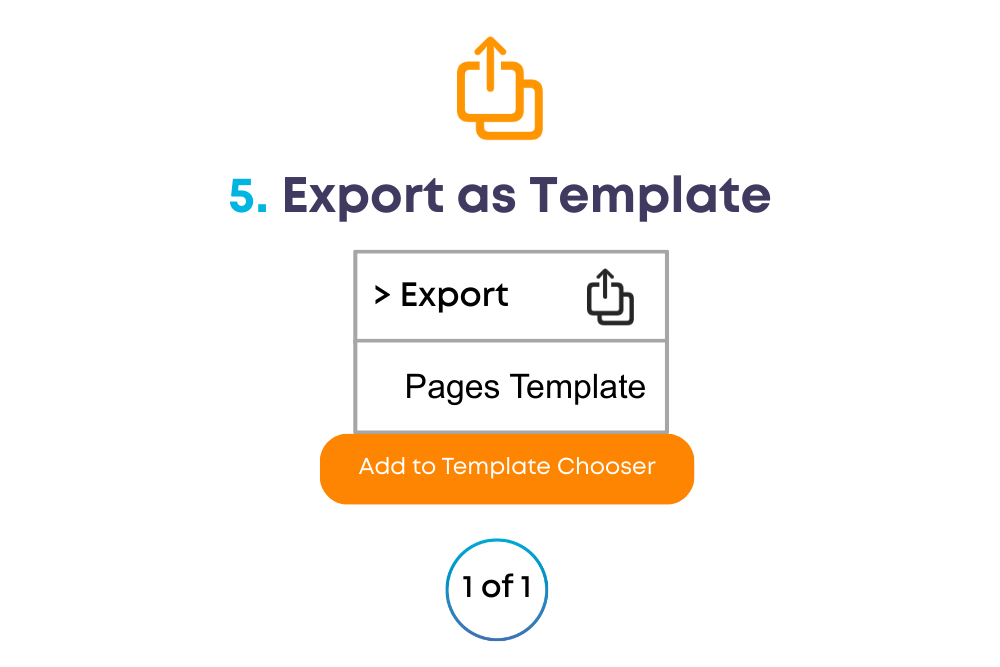
Step 5.
Tap , tap Export, then tap Pages Template.
Click on Template Chooser as your option.
Your template will now appear in the My Templates category in the template chooser and will be pre-set up and ready to use for all your Senior Cycle AACs.
Benefits of using iPad for Senior Cycle

Not only is iPad portable, rugged and highly versatile, it has so many additional benefits to empower teachers and students including:
- Seamless Access to and use of hundreds of education apps & tools
- Creativity Unleashed through video editing, design & coding built-in tools
- Increased Engagement through interactive and multimedia tools on iPad
- Make Learning Accessible with multiple built-in accessibility apps & features native to iPad
- Increased Efficiency with quicker feedback and streamlined assessment
- Enhanced Collaboration among students and teachers with built-in Real-Time collaboration tools
- Environmentally friendly – say goodbye to stacks of handouts!
Learn More
Want to learn more about using iPads for the Additional Assessment Components of Senior Cycle? Let us know below what you would like assistance with and one of our team will come straight back to you.